 11
11

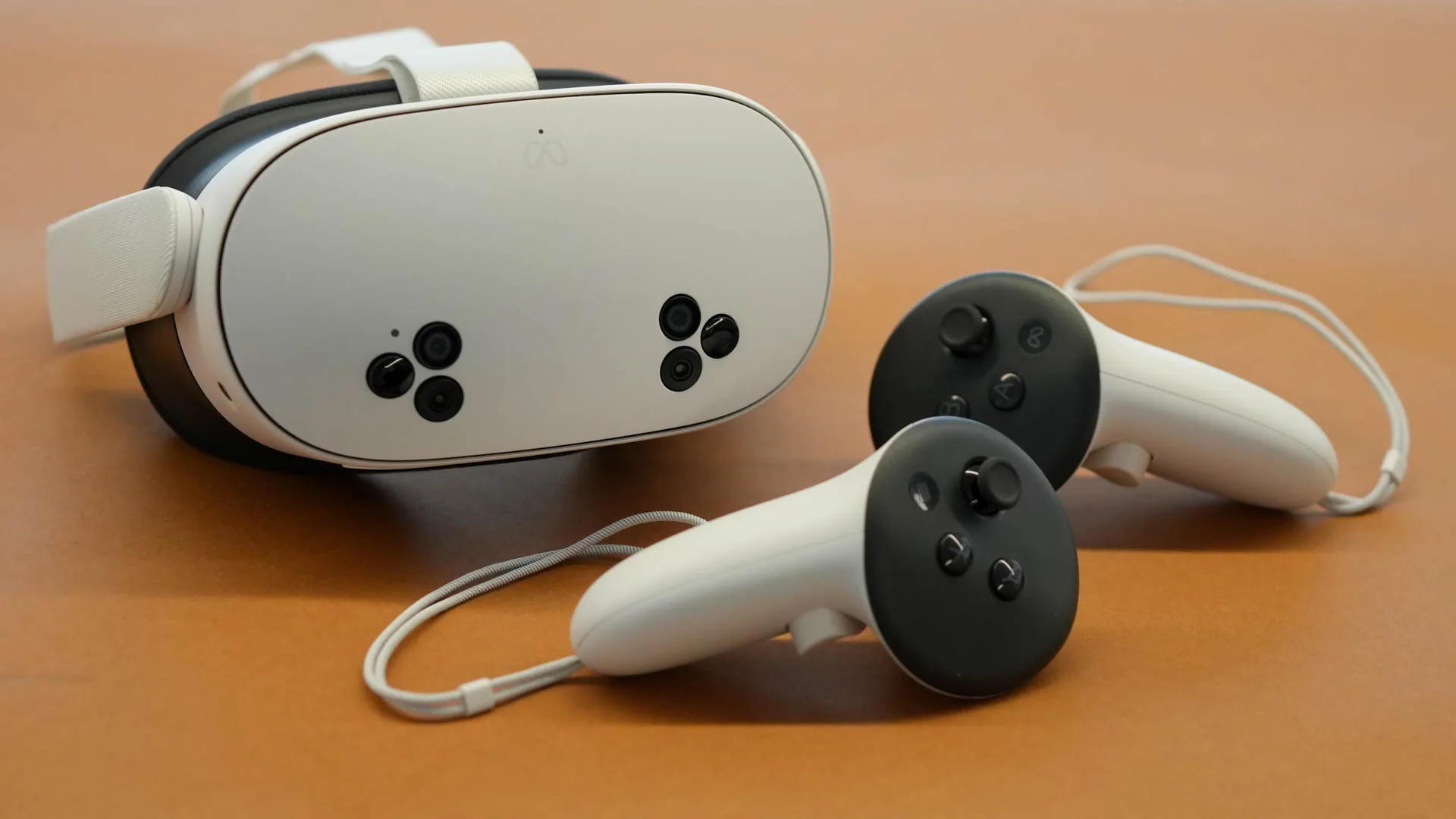
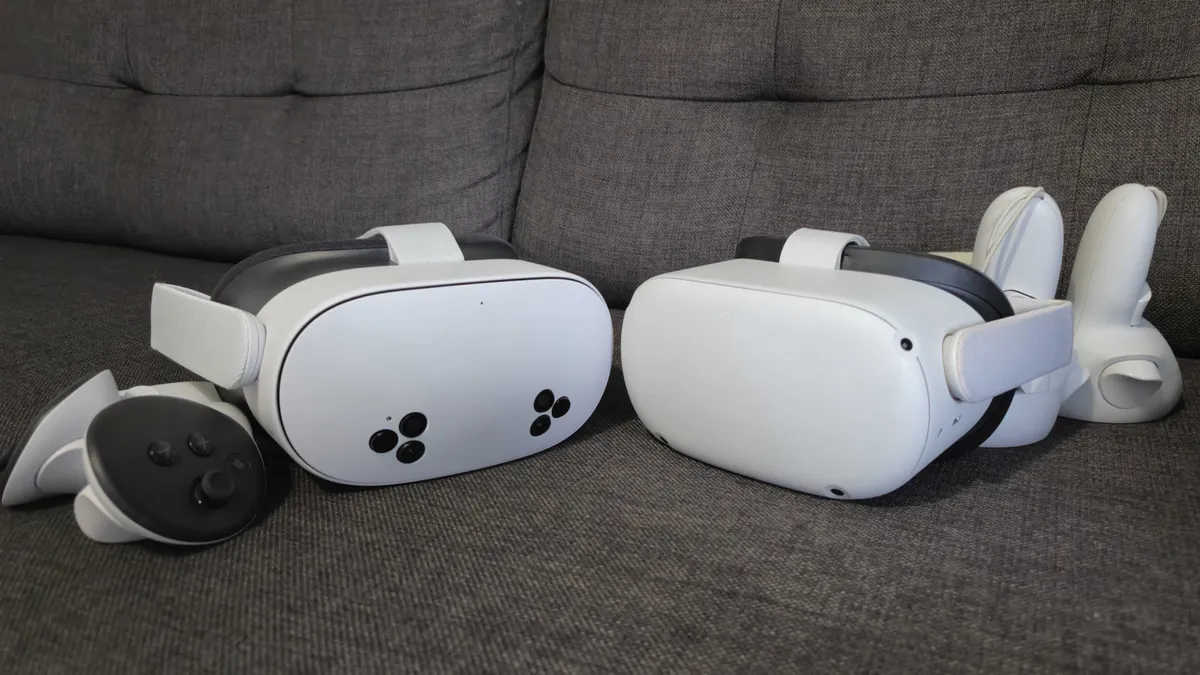
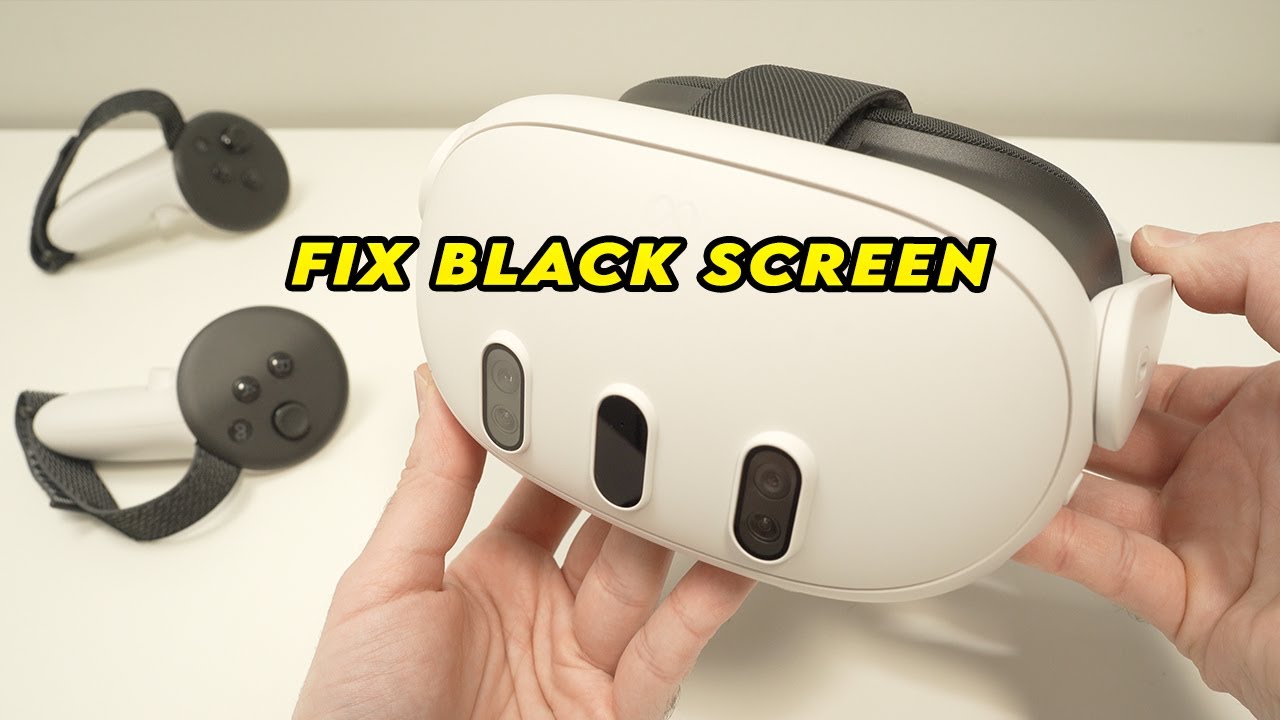
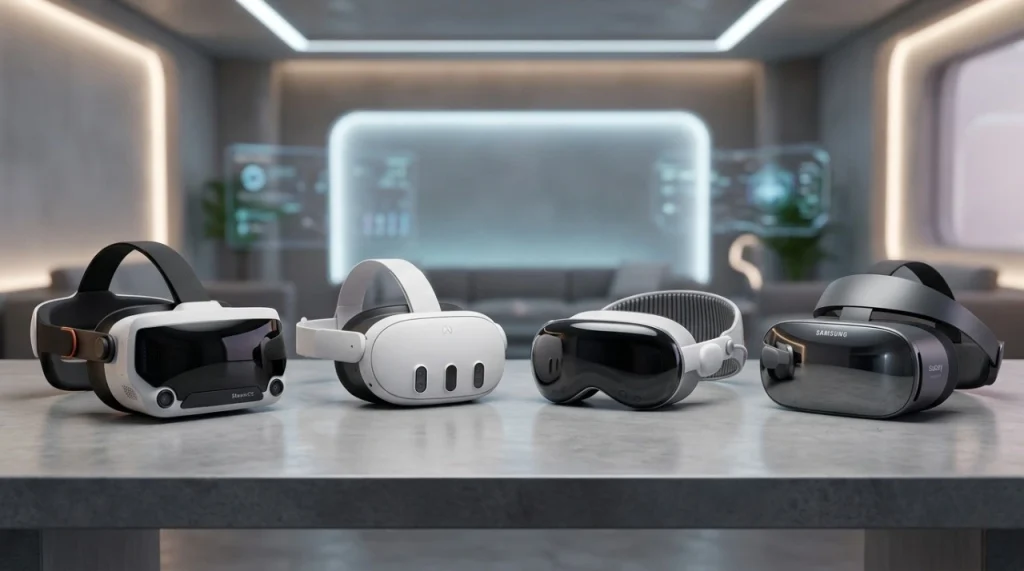
Wireless PC VR has officially come of age. In 2026, with the widespread adoption of Wi-Fi 6E and Wi-Fi 7, the dream of “latency-free” wireless gaming is finally a reality. Whether you’re rocking the industry-standard Quest 3 or the newer Quest 3S, Meta Air Link remains the most powerful built-in tool to play high-end PC VR titles like Half-Life: Alyx or Microsoft Flight Simulator without being tethered by a cable.
Before you toggle the switch, ensure your environment is optimized for high-bitrate streaming:
Open the Meta Horizon App on your PC. Navigate to Settings > Beta and ensure Quest Link is enabled. In the 2026 version of the software, this is often toggled on by default, but always verify after a fresh update.
Put on your Quest. Open Quick Settings (click the clock/battery icon). Select the Quest Link button. Ensure the Use Air Link toggle is switched to ON.
Select your PC from the list. A pairing code will appear in VR and on your monitor. Confirm they match and hit Launch.
To get the most out of your Meta Quest 3S or Quest 3, you need to tweak the Air Link Dashboard settings while you are inside the Link environment:
While the physical Link Cable still provides the absolute highest data throughput, the freedom of 360-degree movement in 2026 hardware is a game-changer. Air Link allows you to dodge, duck, and spin in room-scale games without the constant fear of tripping over a $80 cable.
Need help troubleshooting a specific “No PC Found” error? Drop a comment below!