 11
11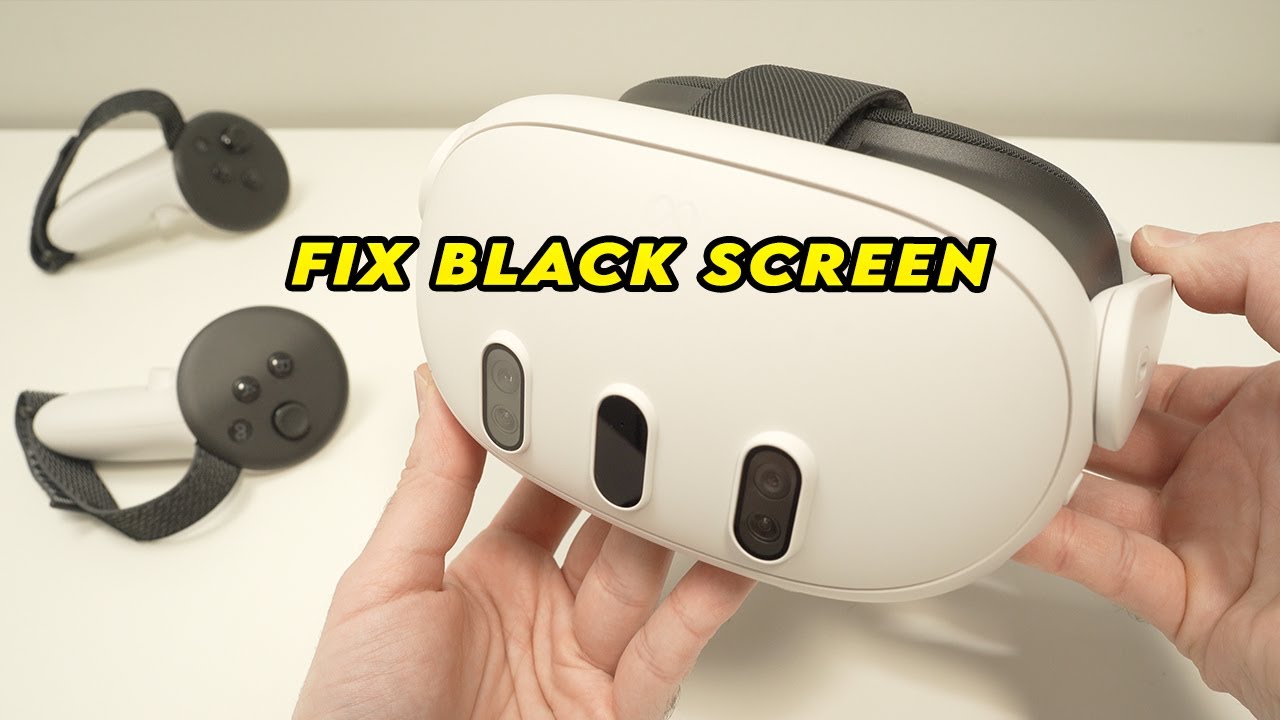
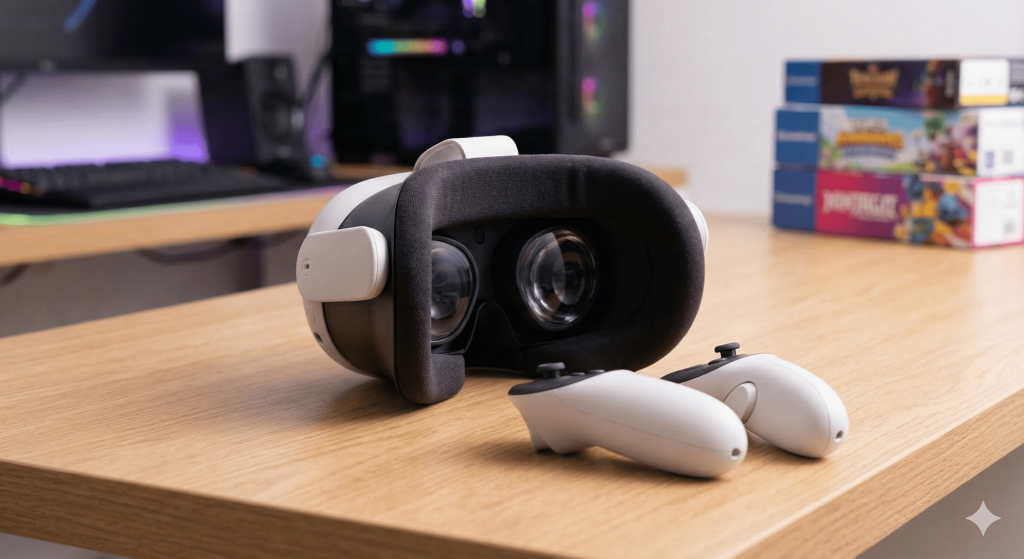
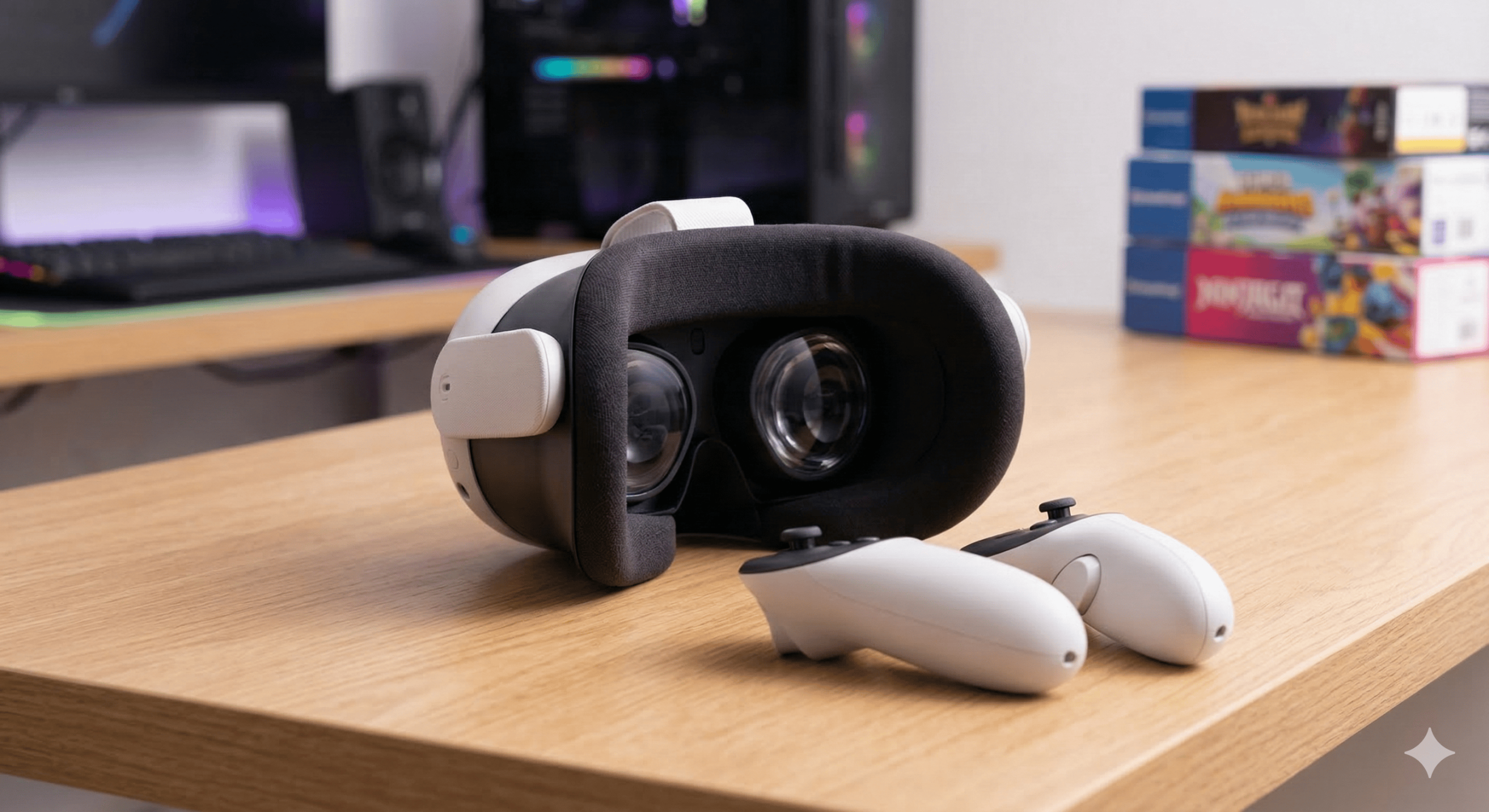
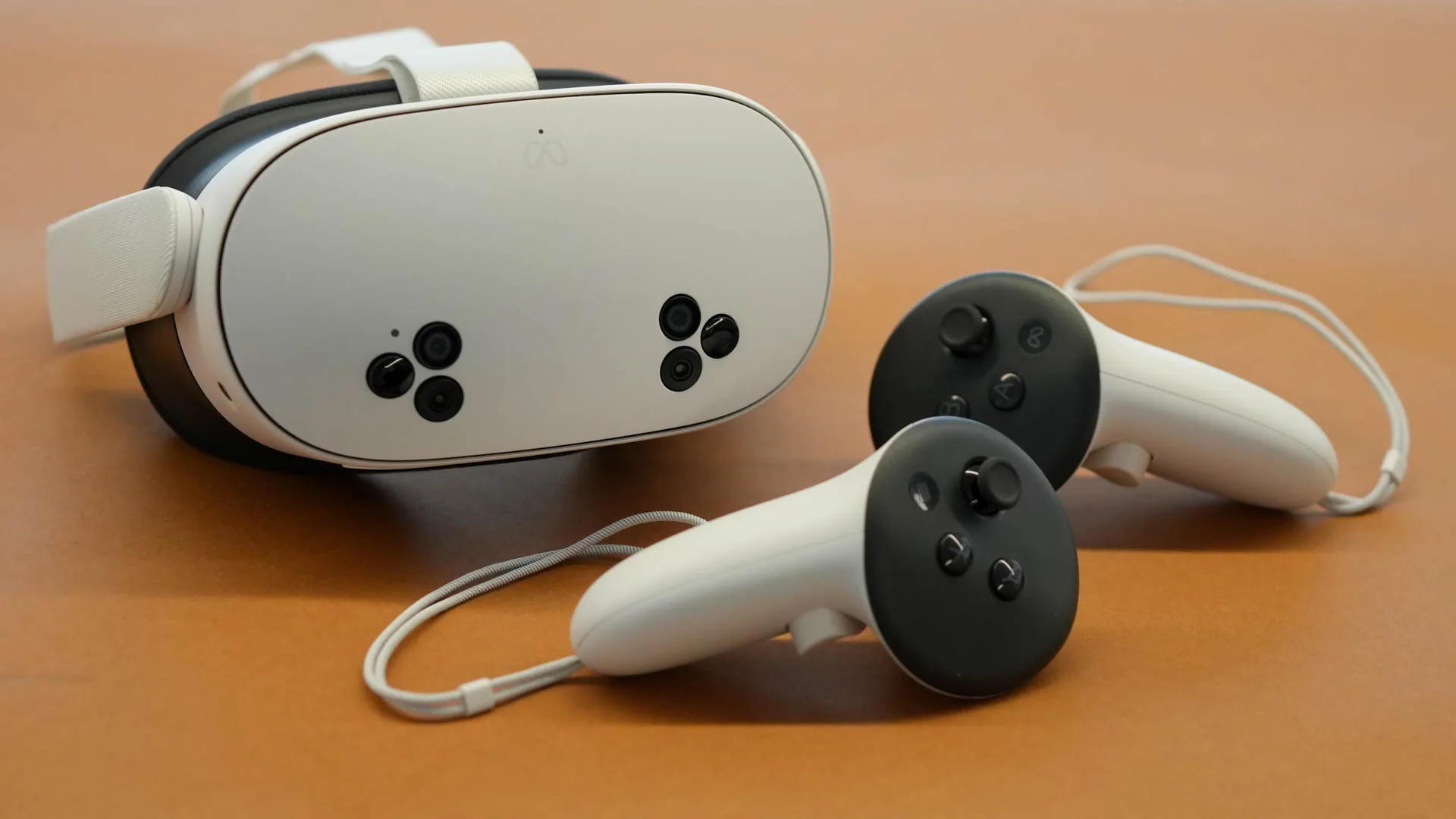
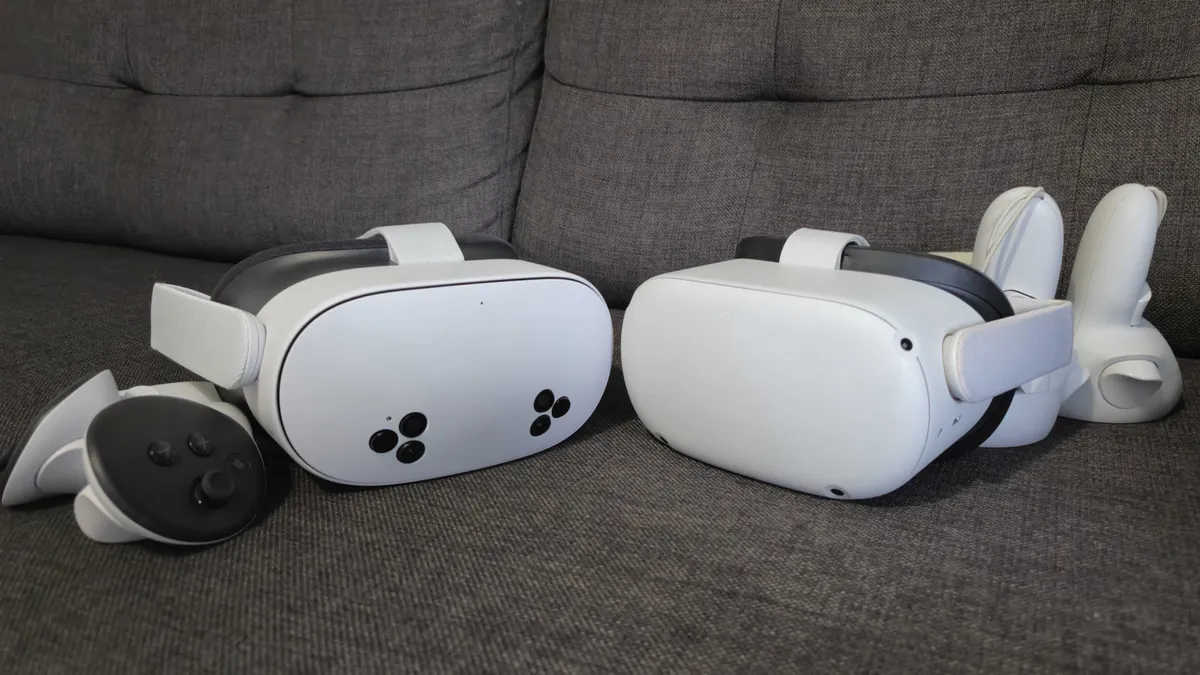
There is nothing more annoying than strapping on your Meta Quest 3, ready to dive into some mixed reality, only to be met with… well, absolutely nothing. Just a dark, void-like screen staring back at you.
Before you start thinking about an expensive RMA or a “paperweight” situation, take a breath. The Quest 3 dark screen issue is actually super common, and 9 times out of 10, it’s a silly software hiccup or a sensor acting up. Let’s walk through the fixes that actually work.
This is the biggest culprit. See that little oval sensor between the lenses? That thing is sensitive. If it thinks the headset isn’t on your face, it kills the screen to save power. If it gets dirty or blocked, it stays dark.
Sometimes the OS just gets stuck in a loop. A quick tap of the power button won’t do it—you have to be aggressive. Hold the power button down and count to thirty. Don’t let go until you see that Meta logo pop up. This “hard reboot” clears out the cobwebs that cause the Quest 3 black screen of death.
This is a weird trick that surprisingly works. If your Quest 3 screen is unresponsive, grab your phone. Open the Meta Horizon app, find your headset in the settings, and try to launch a game from your phone. Often, the command from the app “wakes up” the display driver and brings the screen back to life.
If you’re still seeing black but can hear audio, try this: Hold Power and Volume Down (-) at the same time. This opens the “under the hood” menu. Use the volume buttons to highlight ‘Boot Device’ and hit power. It’s like a fresh start for the hardware without losing your data.
Still stuck in the dark? It might be a hardware failure, but try these steps twice before calling support. Good luck, and see you in the Metaverse!