 11
11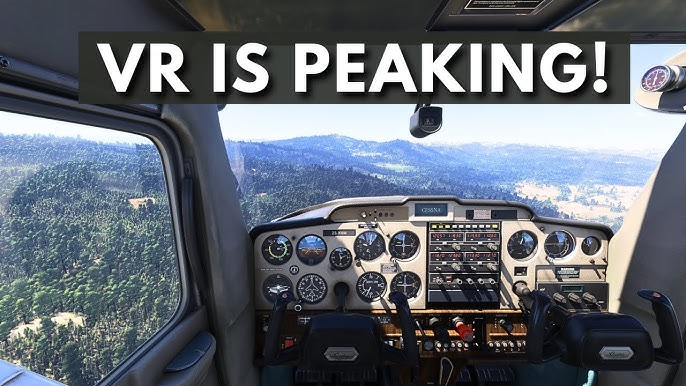
Published: March 2026 | Expert VR Optimization
Flight simulation in Virtual Reality should be a seamless window into another world. However, many pilots using the Meta Quest 3 have recently hit a wall. Following recent updates, a wave of MSFS 2024 VR stuttering and rhythmic freezes has made the skies unplayable.
If you have a high-end PC—running an RTX 4080 or 4090—but are seeing “heartbeat” lag, this guide breaks down the community-sourced fixes to get your frame rates back to smooth levels.
The most common issue involves a conflict between the Meta Link Cable and the simulator’s encoding. Even with a healthy 2.0 Gbps+ bandwidth, users report rhythmic frame drops every few seconds.
Switching back to the H.264 codec is the most successful fix for cable users currently struggling with H.265 bugs.
Program Files\Oculus\Support\oculus-diagnostics). 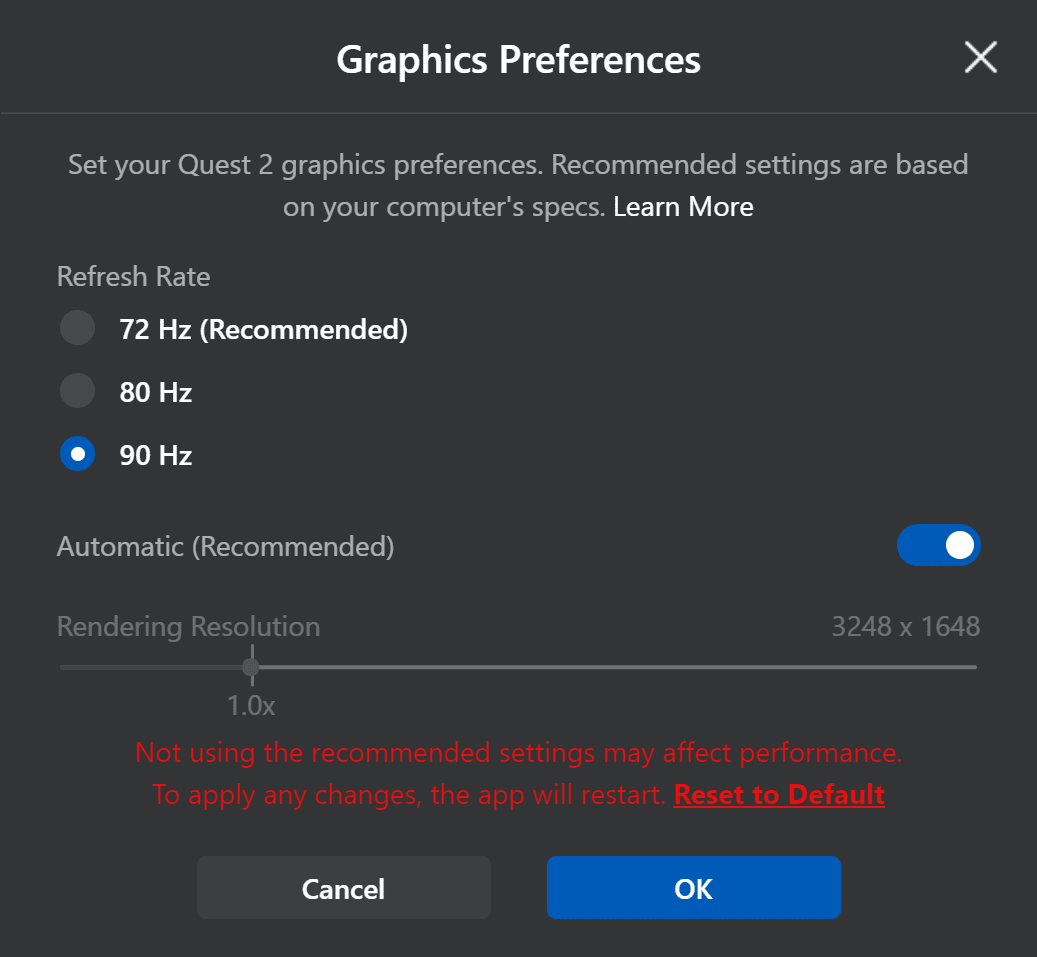
Loading the MSFS 2024 world in VR puts immense strain on VRAM. Instead:
Ctrl + Tab to switch to VR.