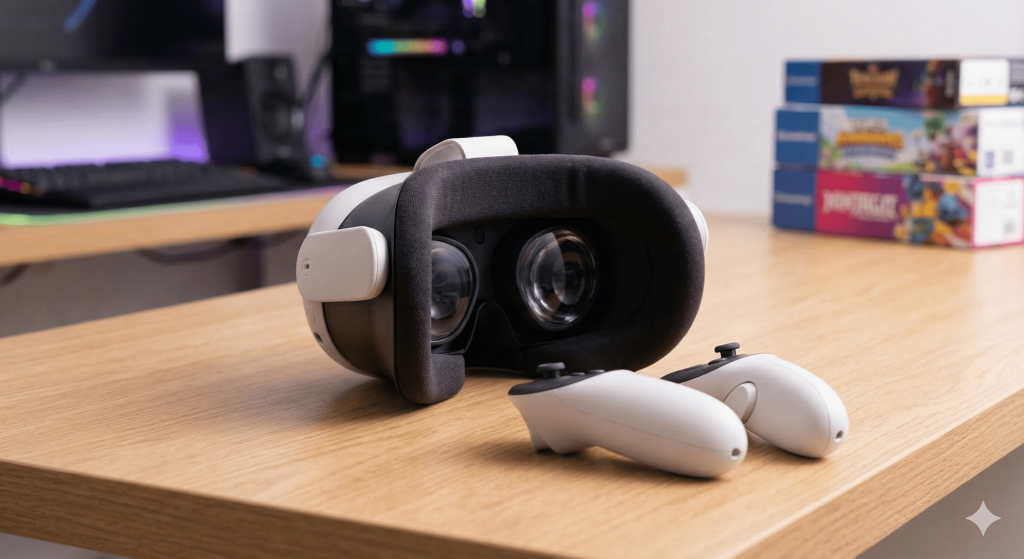
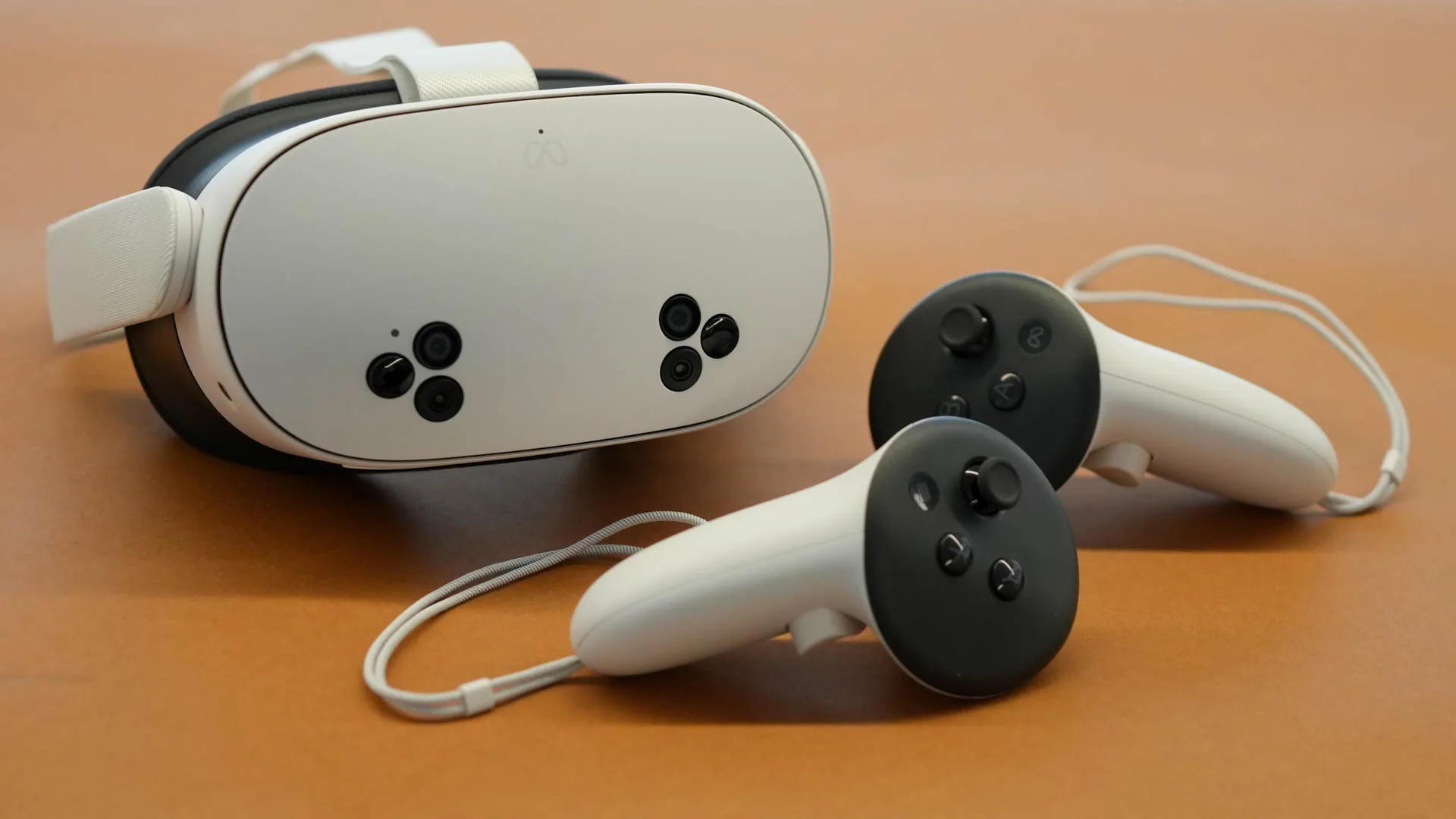
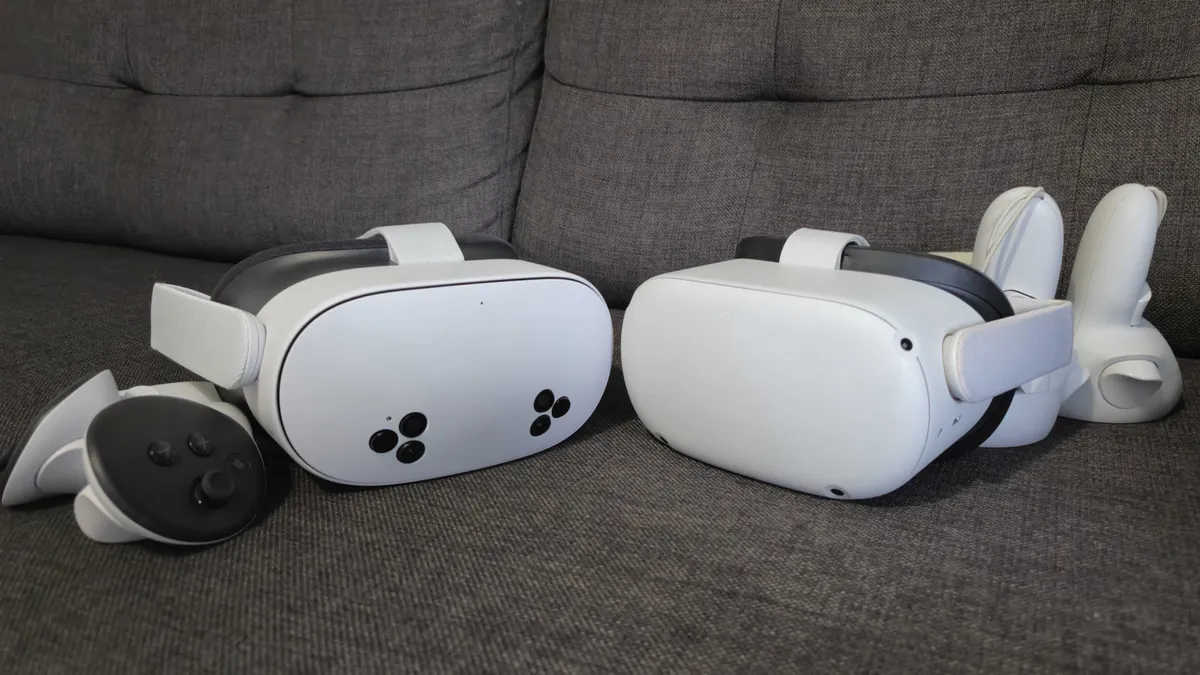
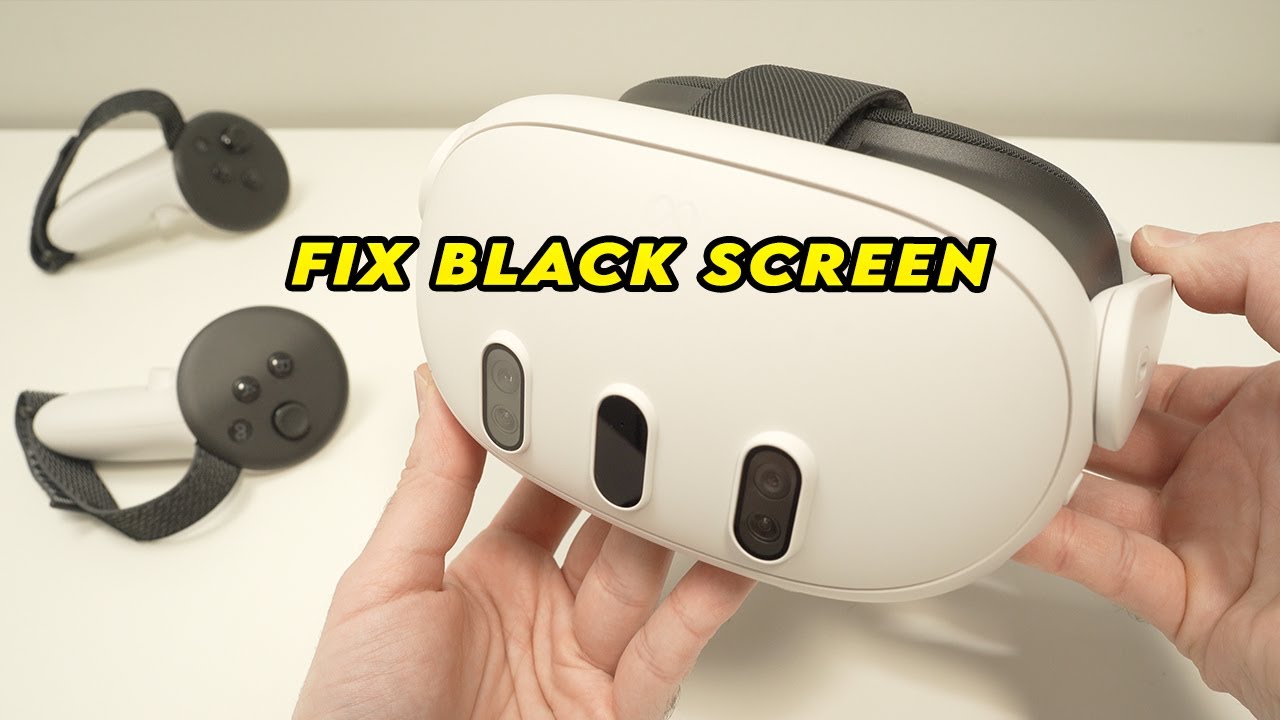
The Meta Quest 3 isn’t just a gaming powerhouse. It’s arguably the best device ever made for immersive adult media. With its upgraded pancake lenses and 4K+ Infinite Display, the clarity is a massive leap over the Quest 2.
If you’ve just unboxed your headset and want to get straight to the action, here is everything you need to know to get the most out of your VR experience.
1. Initial Setup & Fit
Before diving into VR, you need to ensure the “view” is perfect. Proper fit is crucial for visual fidelity.
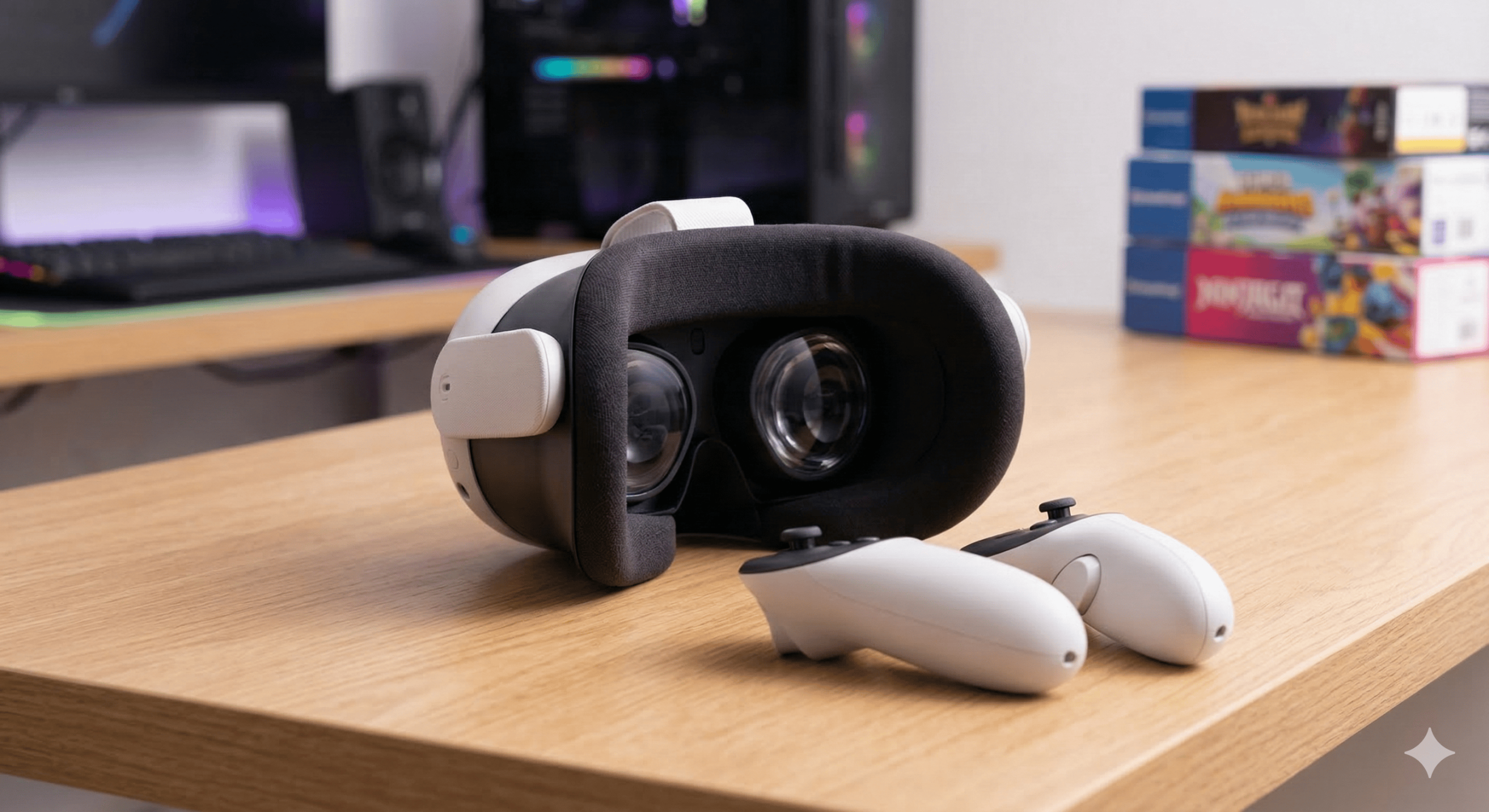
- The IPD Adjustment: Use the scroll wheel on the bottom-left of the headset to adjust the lens distance. This ensures the image is crisp and reduces eye strain. A blurry picture usually means the IPD is wrong.
- Passthrough Mode: Double-tap the side of your headset to toggle Color Passthrough. This lets you see your real-world surroundings without taking the headset off—perfect for staying aware of your environment.
2. Browsing Privately
Privacy is likely your top priority. While the Quest 3 has a built-in browser, you’ll want to manage your footprint carefully.
- Incognito Mode: Open the Meta Quest Browser and select the “New Private Tab” (the mask icon). This prevents your history, searches, and cookies from being saved on the device.
- Pattern Lock: If you share your home, protect your device. Go to Settings > Security to set a PIN or unlock pattern so no one else can browse your library or history.
3. How to Watch High-Quality VR Media
Streaming via a browser is easy, but for the highest resolution (8K) and smoothest playback, you should use dedicated apps. Here are the best ways to view content on our site:
| Method |
Best For |
Pro Tip |
| Native Browser |
Quick streaming & casual browsing |
Ensure you click the “VR” icon in the video player to enter immersive mode. |
| DEOVR Player |
High-end streaming |
The industry standard. It offers the best UI for adjusting zoom, tilt, and playback speed. |
| Skybox VR |
Local files & advanced streaming |
If you download high-res files to your PC, Skybox can stream them wirelessly to your Quest (via DLNA/SMB). |
4. Optimizing for “The Experience”
To get the most out of your Quest 3, keep these technical tips in mind:
- Clean Your Lenses: Use only a dry microfiber cloth. Smudges ruin the immersion immediately.
- Check Your Wi-Fi: High-resolution VR video (8K) requires massive bandwidth. Ensure you are connected to a 5GHz or, even better, a 6GHz (Wi-Fi 6E) connection to avoid buffering.
- Battery Management: High-res VR drains the battery quickly (about 2 hours). Consider a “Battery Head Strap” for longer sessions, or stay plugged into a wall charger.
Pro Tip on Lighting: Although the Quest 3 has excellent tracking, adult content often involves low-light environments. Ensure there is enough ambient light in the room for the cameras to track your hands and environment.
5. Navigating VR Media Controls
When watching a video, standard controls apply, but most players allow you to optimize the view:
- Adjust Scale/Zoom: If the “actors” look too big or too small, look for the Scale or Zoom settings in the video player’s advanced menu.
- Recentering: If the video feels off-center or you have shifted position, hold the O (Meta) button on your right controller to reset your view immediately.
Quick Safety Tip: Always set up a “Stationary Boundary” if you plan on sitting or lying down. It prevents the “Guardian” grid lines from popping up and breaking your immersion while you’re busy.

 1
1